Anyone who’s used Sibelius before has been through the pain of listening to the General Midi sound set. It’s frankly embarrassing how bad it still is in 2026.
Fortunately Sibelius comes with some options to remedy this. You can install the Sibelius Sounds pack (Previously Sibelius 7 Sounds) if you have a legitimate copy of the software (don’t worry I won’t judge) but these are pretty mid as well.
NotePerformer is the next best option, and is quite user intuitive, but is very resource intensive, introduces a lot of latency to playback, and is quite pricey ($129 at the time of writing) for what it is, especially if you already own some instrument libraries for use in your DAW.
That’s where ReWire comes in. Developed by Propellerhead (Now Reason Studios) and Steinberg in 1998, its become an industry standard for communication between musical software. As of 2026 it has been discontinued by Reason Studios, but at least for now it is still supported by both Sibelius, and REAPER.
It is extremely finicky to get working right however, so that’s the purpose of this article.
Why use ReWire#
Why use ReWire
- It’s “free” - Obviously Sibelius isn’t (unless 🏴☠️) and REAPER technically isn’t, AND you need to have an instrument library/sampler, but there’s plenty of free samplers out there (Have a look at Spitfire’s Labs and “Decent Sampler).
- It has less latency for playback than NotePerformer.
- You can use audio fx, change instrument sounds and mix sound a lot easier than through Sibelius’ UI.
- You can play movie clips/other audio easily, making arranging for existing music a breeze.
Software Details#
Software Details
I’m running the following software. If something looks or behaves differently, check what version you’re running.
- Macos 15.7.5
- Sibelius 2025.4 Build 7105
- REAPER 7.71
- ReWire (Comes with REAPER)
- “Kontakt 8”
Basic Setup#
If you just want to be able to play your Sibelius composition with another piece of music (e.g. a backing track) and have them be synced, ReWire is really easy to use.
You will have to account for latency, so for best results use General Midi, or Sibelius Sounds playback inside Sibelius.

- Make sure Sibelius is closed.
- In REAPER create 2 tracks. The first will house your backing track. The 2nd will house your ReWire plugin.
- Under FX, search for and activate ReWire:Sibelius/x86_64
- Sibelius will automatically launch.
- Open your score. Now when you press play in Sibelius, REAPER will begin playback (and vice versa).
Note: You’ll want to make sure your REAPER session (and backing track) is set to the same tempo as your Sibelius session, or composing won’t make much sense. If you have tempo changes in your Sibelius session, check the “Allow client to set tempo” box in the ReWire plugin.
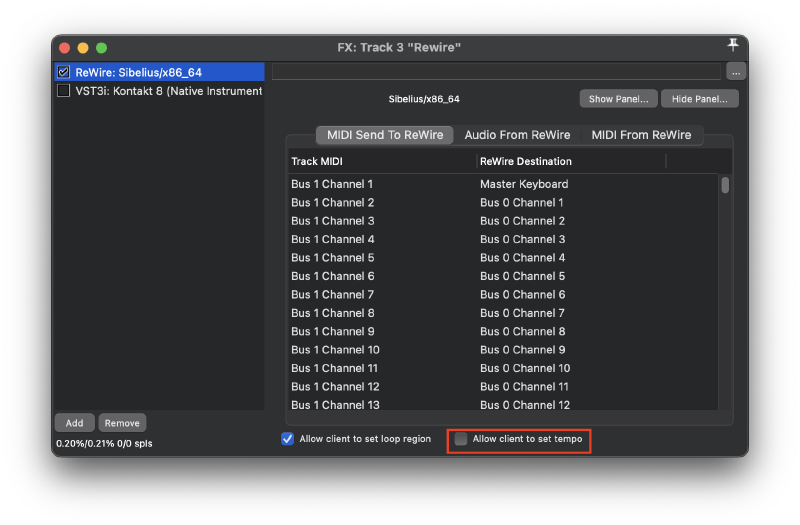
Make sure you close Sibelius first once you’re done, otherwise REAPER gets stuck waiting for it to close.
Advanced Setup#
The basic setup has the flaw of you need to listen to Sibelius’ awful audio.
This setup allows you to pipe your midi data from Sibelius into REAPER, and control all your sound there. This allows for easier mixing, FX, and VST use.
Note: The Windows systems don’t have a native virtual MIDI pipeline like Macos does, so you’ll need to use a third party software for the following step. There’s a great article here detailing the specifics using a virtual MIDI pipeline called LoopBe.
- Open Audio MIDI Setup, and then press ⌘2 to open the MIDI Studio.
- Double click the red IAC Driver
- Below the “Ports” box, click the + to create a port. Rename this to whatever you want (Mine is “Sibelius Bus”).
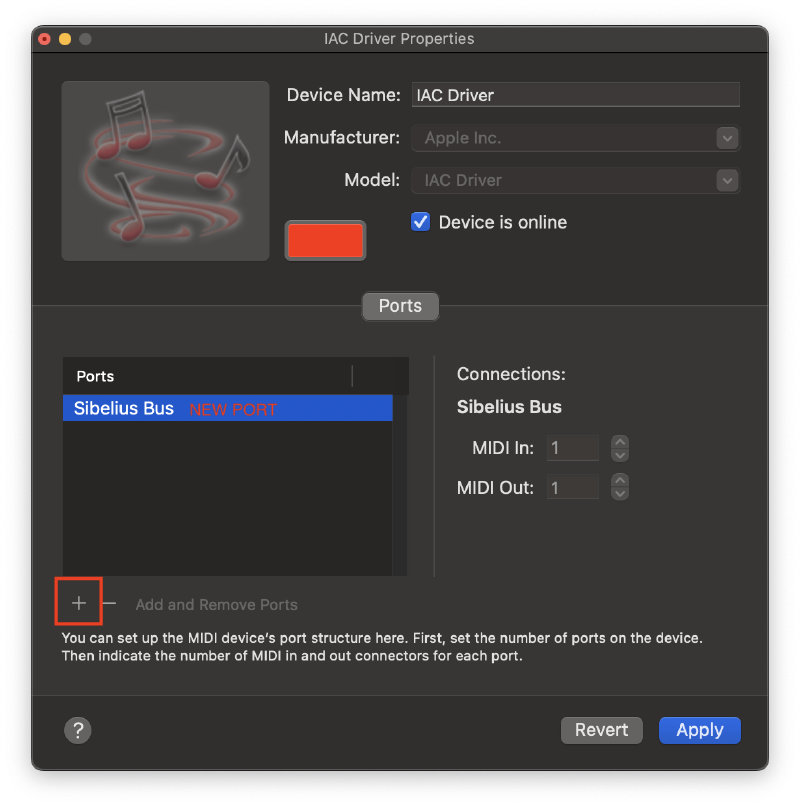
Click Apply
Inside REAPER, open preferences (⌘.)
Under Audio -> MIDI Inputs, enable your newly created port - Apple Inc. - IAC DRIVER - YOURPORTNAME by clicking in the spaces to the right (Input, All, Control), and then click Apply.
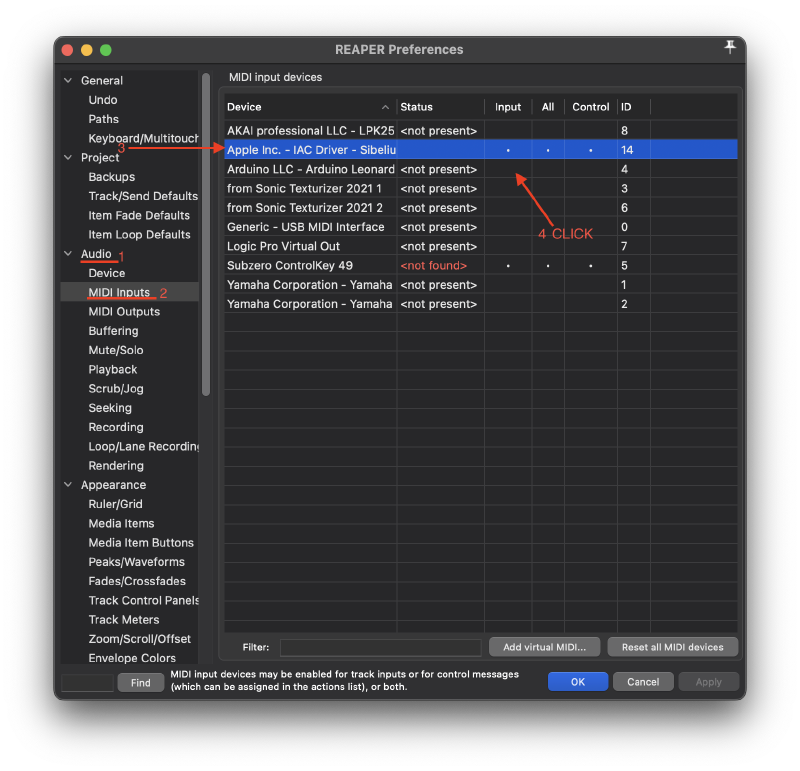
- Back inside the main editor window create 2 tracks - Track 1 is for ReWire (add it under FX), Track 2 is for your VSTi (In my case I’m using Kontakt 8)
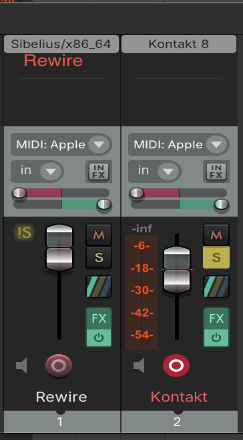
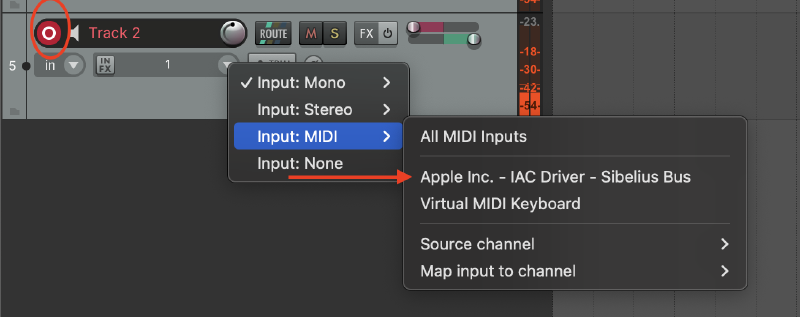
- Record arm Track 2 by pressing the red button on the track.
- Change your input to Input:MIDI - Apple Inc. - IAC DRIVER - YOURPORTNAME
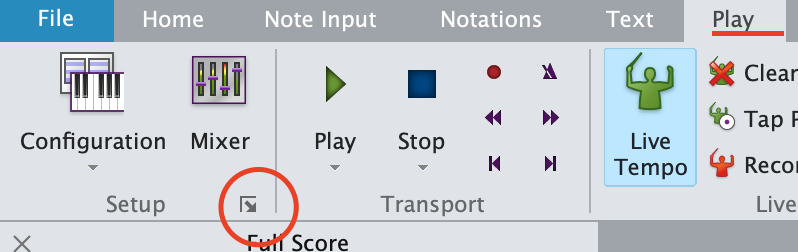
- Inside Sibelius, open the play tab, and click the little square in the corner of the setup section
- Click the “New…” button and name your new playback configuration.
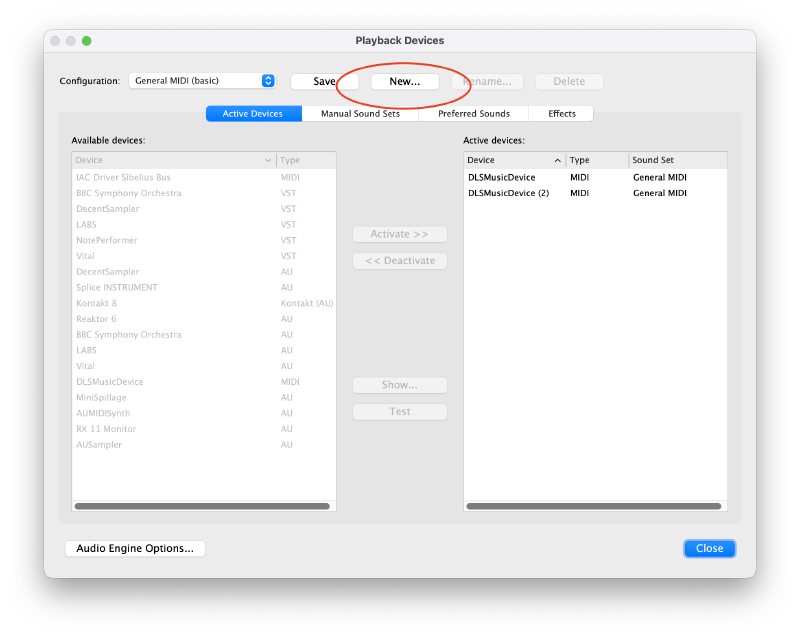
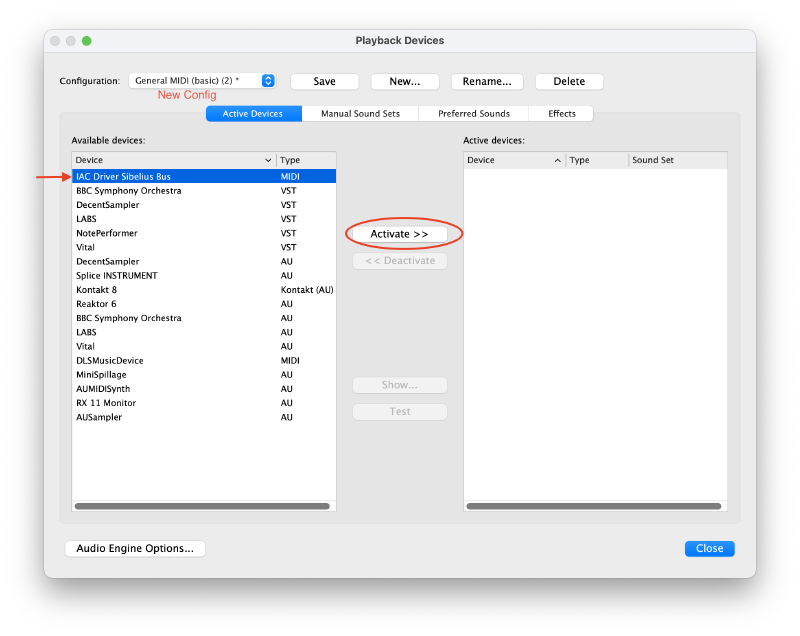
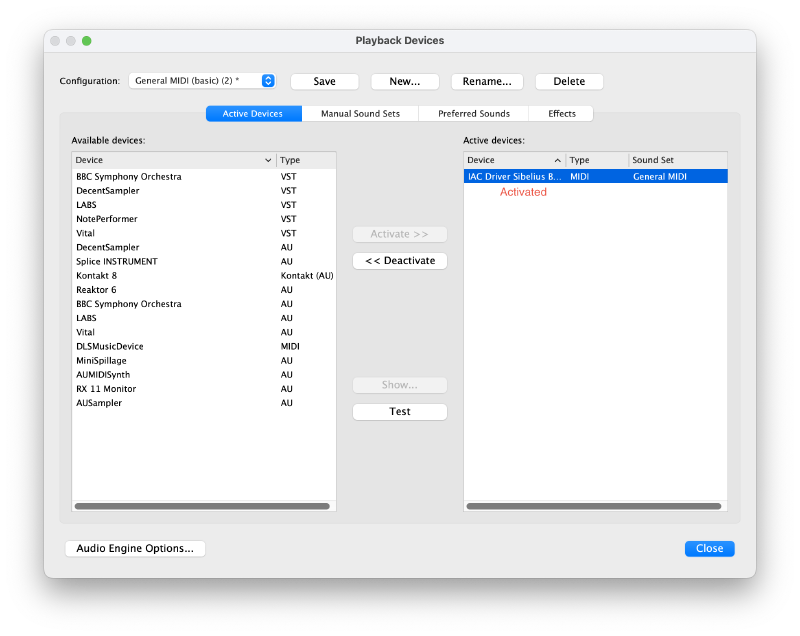
- In the list of available devices on the left find your IAC DRIVER - YOURPORTNAME device, and activate it.
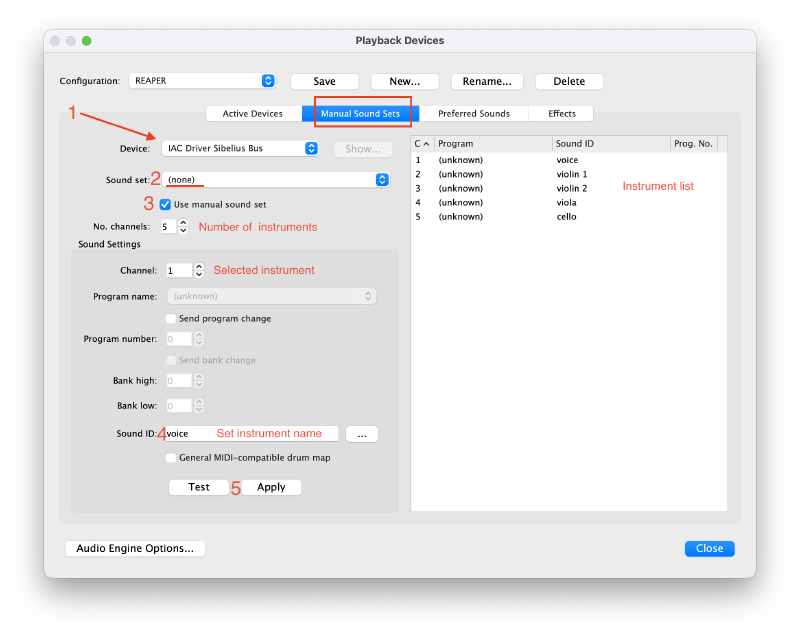
Under Manual Sound Sets, make sure your IAC DRIVER - YOURPORTNAME is selected, and the sound set is set to “(none)”. If nothing appears here, restart both Sibelius and REAPER.
Check “Use manual sound set”, and set the number of channels to the number of instruments on your score.
Under “Sound Settings” set each channel’s “Sound ID:” to the name of your instruments, and APPLY.
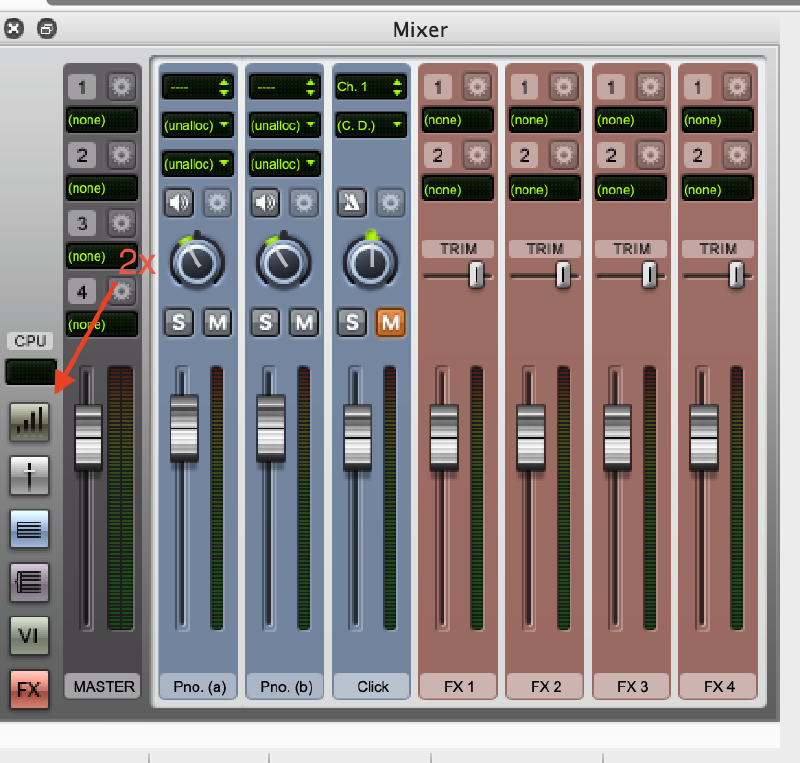
Inside the main Sibelius window open the mixer with M , and then press the top green button 2x to see the assigned sound sets.
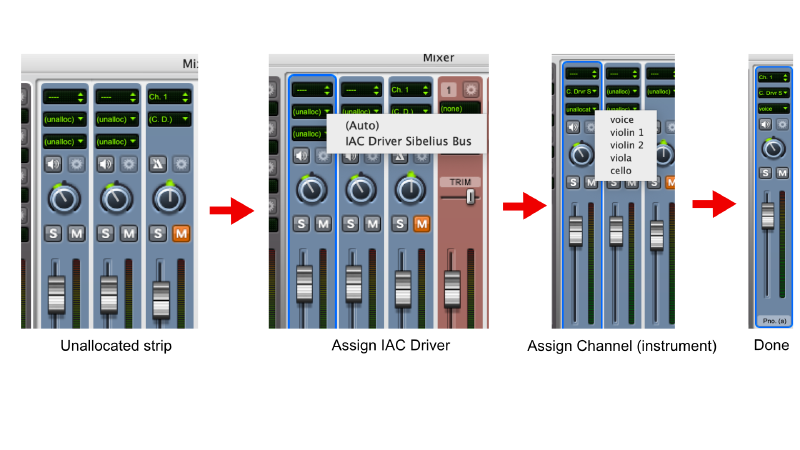
Assign each of your instruments to IAC DRIVER - YOURPORTNAME and then the appropriate channel (Click where it says “Unallocated”).
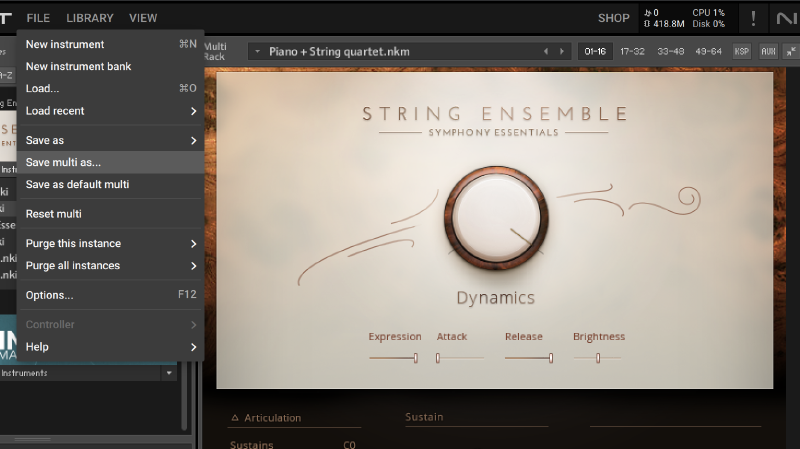
Back inside REAPER open Kontakt. You can load multiple instruments into one instance of Kontakt, so do so for each of the instruments in your score (You can save this as an instrument Multi under File-Save Multi as…)
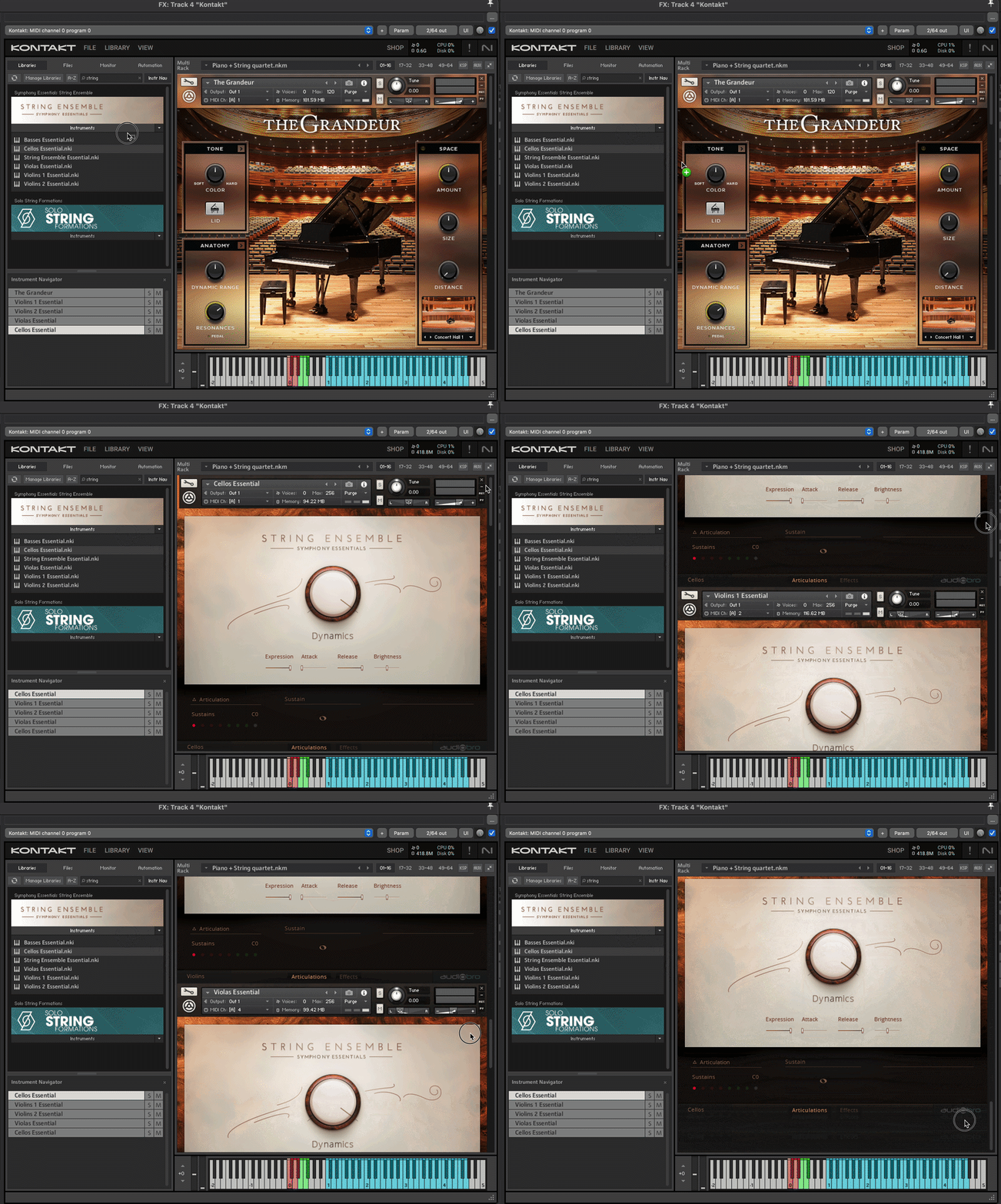
In the instrument header, set the channel of the instrument to Port A[From Host] and its corresponding channel number in Sibelius.
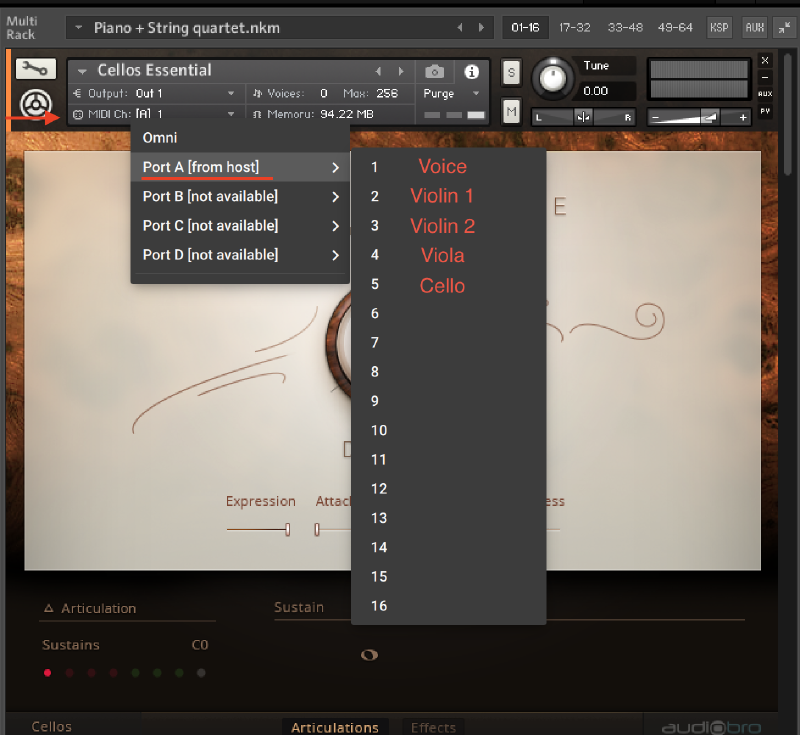
You’re Sibelius instruments should now be routed to the audio of your Kontakt instruments inside REAPER. Note playback and general playback should sync automatically, and you can customize your Kontakt instruments as you see fit. If you want to have separate instances of Kontakt for each instrument that’s ok (but more resource intensive), just make sure to assign your MIDI channels correctly in the instrument header. I’ve written this with Kontakt 8 in mind, but the above steps should work with any sampler, just look for MIDI Input settings.
Troubleshooting#
If your Sibelius is out of time with your REAPER click, try right clicking on your REWIRE track in REAPER –> Track Performance Options –> Prevent Anticipate FX
If your Sibelius is setup correctly, and there’s still no sound, double check that you’ve got your inputs setup in REAPER correctly (Make sure your instrument track is Record Armed, and set to use your virtual MIDI Input)
If you’re using a backing track, and play through Sibelius, you’re tracks won’t line up correctly, because Sibelius has 1 beat of silence built into its playback (So REAPER will start playing instantly, while Sibelius will be 1 beat behind). If you start playback from REAPER, this beat of silence is skipped, so your tracks will be in time.